4. Modify a gift order
Edit a gift order's message, recipient details, delivery method or scheduled time, and what to check before you resend it.
Written By Giftnote Admin
Last updated 3 days ago
On the free plan? This feature needs the Core or Professional plan. Start a 30-day free trial from Settings > Subscription in the app, or email support@giftnote.com and we'll help you choose. Which plan do I need?
You can change a gift message after checkout, for example to fix a typo. You can also change the recipient's name, email or phone, the delivery method and, for a scheduled message, the send time. Saving a change doesn't send the message again, and you can still edit after the message has been delivered.
Modifying a gift order message and schedule
- In Giftnote, select Gift orders and find the order. Use the search icon and Filter at the top of the list to narrow it down.
- Open the order and select Edit on the Gift Message card.
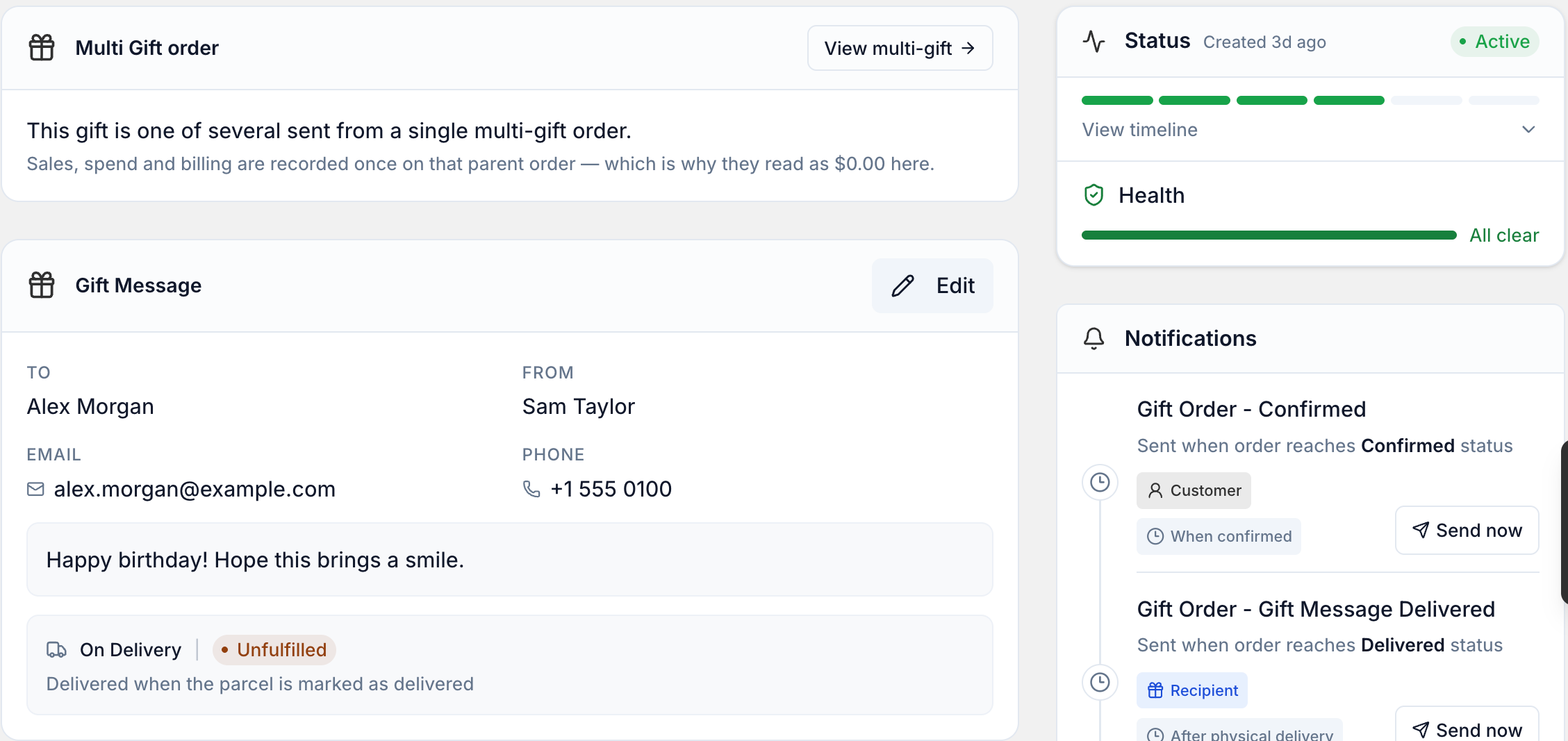
- In the Edit Message window, change what you need: To, From, Message (up to 210 characters), Email (optional) or Phone (optional). The delivery method and, for a scheduled message, the send date and time are here too.
- Select Save Changes. The button stays greyed out until you change something.
Fixing a wrong recipient email or phone number
- Correct Email (optional) or Phone (optional) and select Save Changes. This doesn't resend anything.
- Wait for the order page to finish loading. In the Timeline card, select Notifications to see whether the gift message already went out.
- If it did and the recipient still needs it, go to the Notifications card and select Resend on Gift Order - Gift Message Delivered. See How to resend messages.
Stopping a gift order
If a gift order shouldn't go ahead at all, archive it instead. See Archive or stop a gift order.
Related articles
Still need help? Share an idea