4. Gift progress widget: what buyers see on the thank-you and order status pages
What the gift progress widget shows buyers after a multi-gift checkout, how to add it in Shopify's checkout editor, and where to change its wording or turn it off.
Written By Giftnote Team
Last updated About 24 hours ago
On the free plan or Core? Multi Gift needs the Professional plan. Start a 30-day free trial from Settings > Subscription in the app, or email support@giftnote.com and we'll help you choose. Which plan do I need?
Gift progress widget
After a multi-gift checkout, your customer sees a gift progress widget (also called the gift tracker) that shows how their gifts are getting on:
On the thank-you page, straight after checkout.
On the order status page, when they come back to check on the order later.
It shows the order's current status (for example Processing or Sent), how many recipients it has, and a View order button. It reads the live status from Giftnote, so it's up to date whenever your customer looks.
Add the widget
You add the widget in Shopify's checkout editor, as a block called Multi Gift Progress. Add it twice: once on the thank-you page and once on the order status page.
In Shopify admin, go to Settings → Checkout and select Customize.
Use the page menu at the top to open Thank you.
Select Add block and choose Multi Gift Progress (under Giftnote: Engine for Gifting). Drag it where you want it, usually under the confirmation heading.
Switch the page menu to Order status and add Multi Gift Progress there too.
Select Save.
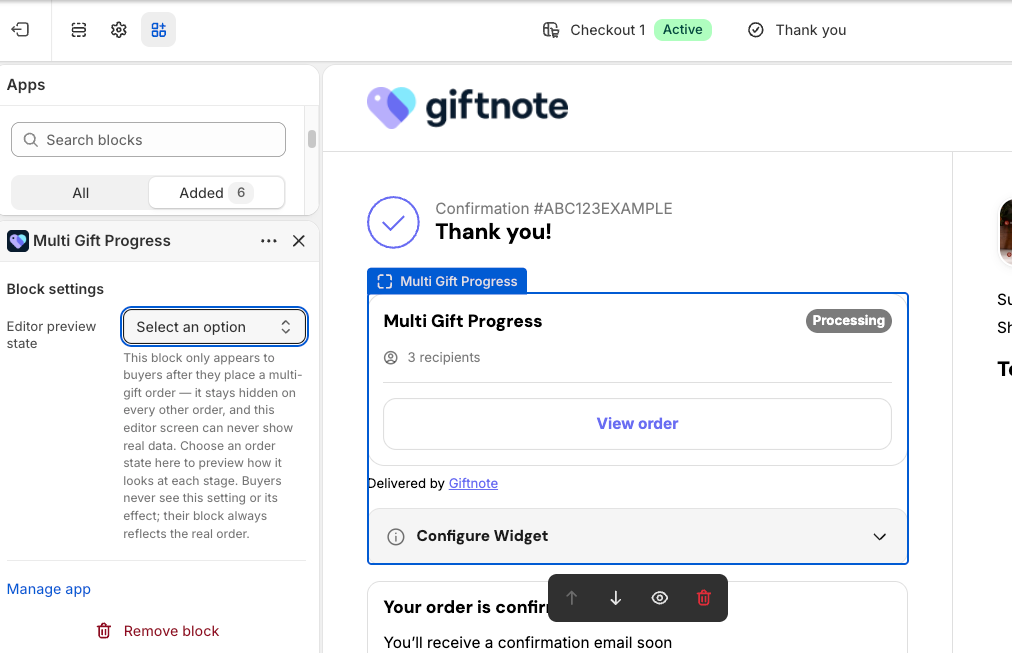
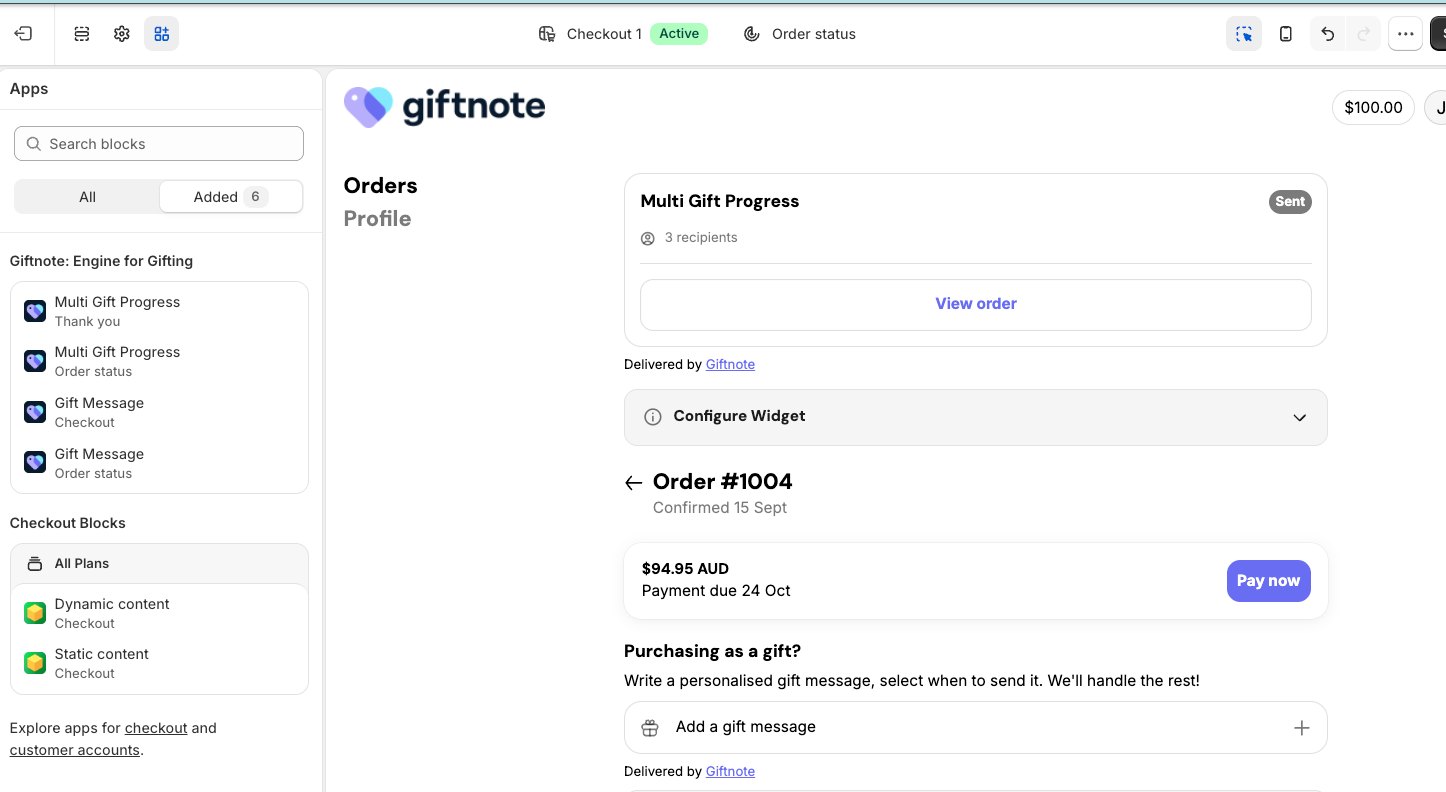
Buyers only see the block on multi-gift orders. In the editor, the block can't show real order data, so use its one setting, Editor preview state, to preview how it looks at each stage. Buyers never see this setting.
To check it worked, place a test multi-gift order and look for the widget on the thank-you page. In Giftnote, the Thank-you page and Order status page rows under Gift progress in the Widgets card (Settings → Multi Gifts) show Detected once the block is live, and each has Guide and Open in Shopify buttons.
Change the wording
In Giftnote, go to Settings → Multi Gifts → Gift progress widget. You can also select Edit next to Gift progress in the Widgets card on Settings → Multi Gifts.
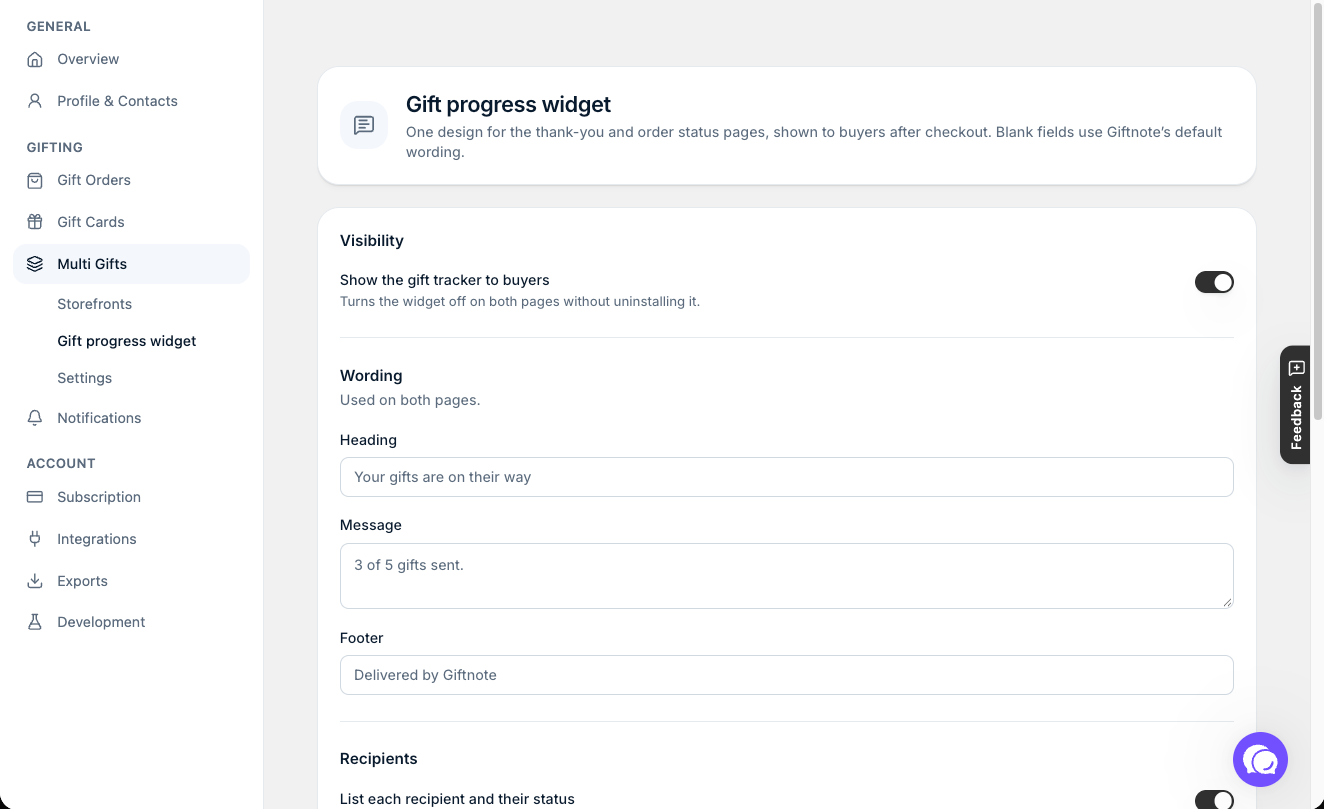
One design covers both the thank-you and order status pages. Under Wording, the same boxes are used on both pages. A Preview lets you switch between Thank you and Order status.
Heading: leave it empty to use wording that changes as the order progresses.
Message: leave it empty to show a live count of how many gifts have gone out.
Footer
Under Recipients, List each recipient and their status adds a line per recipient. It shows on the order status page only, because the thank-you page appears before recipients are processed.
To hide the widget, turn off Show the gift tracker to buyers under Visibility. It disappears from both pages without uninstalling it, and the gifts still send.
Related articles
Still need help? Share an idea