How to connect Iterable
Connect Iterable to Giftnote with a server-side API key, send sample events, and choose and rename the events Iterable receives.
Written By Giftnote Admin
Last updated About 21 hours ago
Connect Iterable and Giftnote sends Iterable an event each time a gift is ordered, delivered or received, so you can trigger gift emails and messages from Iterable in your own designs.
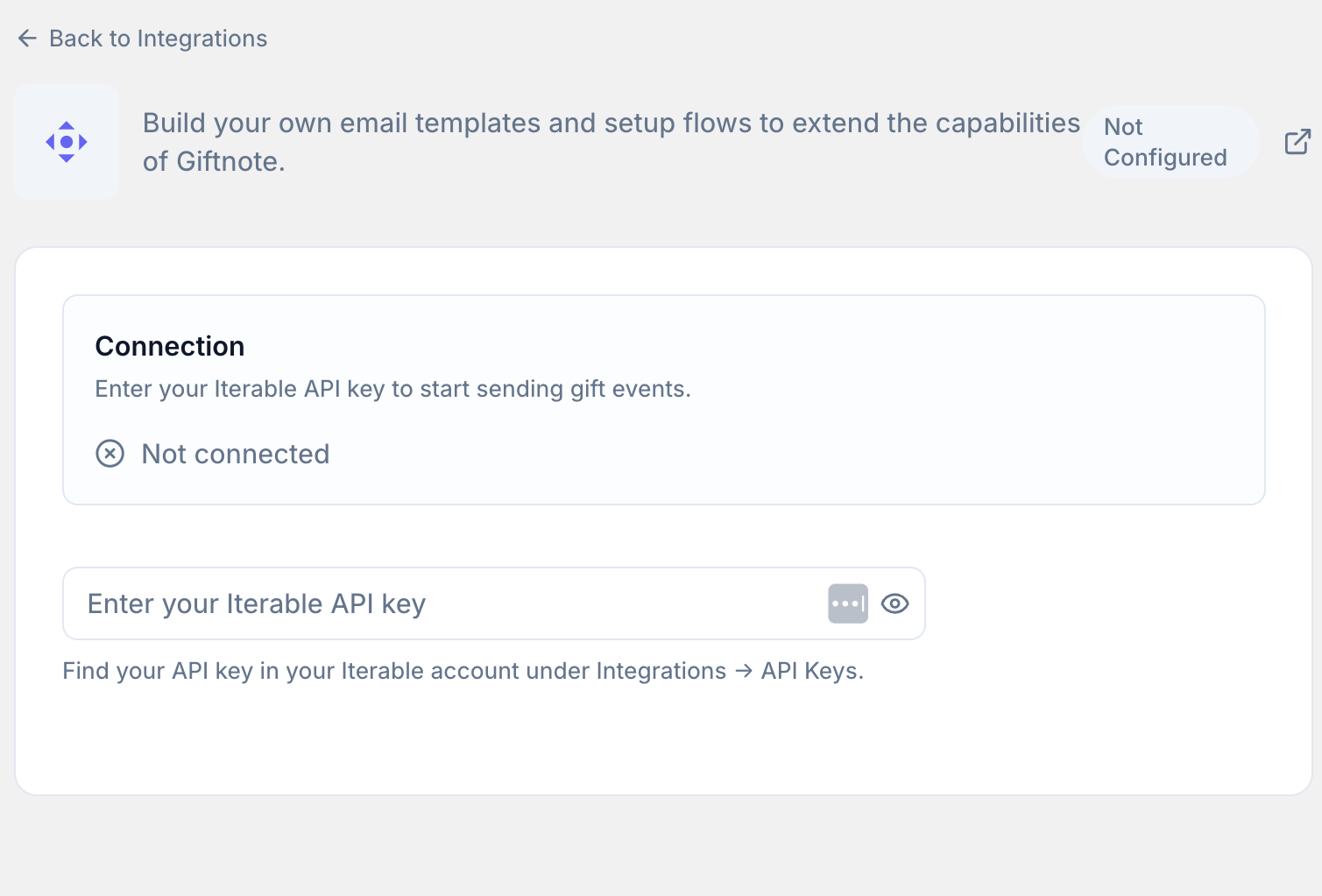
Create an Iterable API key
- In Iterable, go to Integrations > API Keys.
- Create a new Server-Side API key for Giftnote.
- Copy your API key. Iterable only shows it once.
Connect Iterable to Giftnote
- Open the Giftnote app inside your Shopify admin.
- Go to Settings → Integrations. Find Iterable under Available · Marketing and select Connect. If it is already connected, it's under Connected: select Manage settings.
- Enter the API key into Giftnote. Save if a save bar appears. The Connection card then reads Connected via API Key.
Send sample events
- Select Test All under Notification Events to send sample events to Iterable. Use Test on one event to send just that one.
- In Iterable, go to Insights > Events. You should see the sample events from Giftnote.
- Use these events as custom triggers in your Iterable journeys. Each event in Giftnote shows who it's for (customer, recipient or both) and which delivery options send it. Select Preview to see its data, or Edit to change the event name Iterable receives. The full list is in Klaviyo Giftnote Events (Iterable gets the same events).
Turn on the integration
- Leave the switch on for each event you use. Enable All and Disable All change every event at once.
- Turn on Integration Enabled if it is off. The card reads "Events are being sent to Iterable".
- Turn off the matching Giftnote emails. In Settings → Notifications, switch off Giftnote's own email for each gift moment Iterable now handles, so recipients don't get two emails.
Related articles
Still need help? Share an idea