1. Create a new gift order
Add a gift message to a Shopify order after checkout using the order number, and what to do if the order already has a message.
Written By Giftnote Admin
Last updated About 21 hours ago
On the free plan? This feature needs the Core or Professional plan. Start a 30-day free trial from Settings > Subscription in the app, or email support@giftnote.com and we'll help you choose. Which plan do I need?
If a customer forgets to add a gift message at checkout and asks you to add one, you can attach it to their Shopify order in Giftnote. You'll need the Shopify order number.
This works on any Shopify order that doesn't have a gift message yet. If the order already has one, open that order in Giftnote and select Edit on the Gift Message card instead.
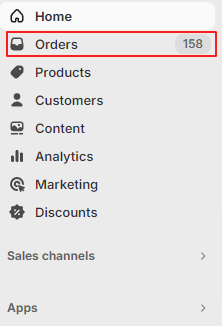
Obtaining the order number
In Shopify admin, select Orders in the left-hand menu and find the customer's order. Use search to look up their name or email. Note the number in the Order column.



Add the message
- In Giftnote, select Gift orders, select the arrow button at the top right, then select Create Message.
- Enter the Shopify order number in Order number. It's required.
- Fill in To, From and Message. Recipient email and Recipient phone are optional.
- Under Delivery, choose Send Now or Schedule. Schedule adds a Scheduled Date & Time field. Pick the date and time the customer asked for.
- Select Create message.
Giftnote looks up the order. If Giftnote doesn't have a gift order for it yet, it creates one and attaches your message. If the order already has a gift message, you'll see "Order [number] already has a gift message — edit the existing message from the order instead of creating a new one." Open that order and select Edit on the Gift Message card instead.
Related articles
Still need help? Share an idea